Documentation Index
Fetch the complete documentation index at: https://cosmos-docs-evm-upgrade-7.mintlify.app/llms.txt
Use this file to discover all available pages before exploring further.
Tendermint Validator app (for Ledger devices)
You should be able to find the Tendermint app in Ledger Live. Note: at the moment, you might need to enabledeveloper mode in Ledger Live settings
KMS configuration
In this section, we will configure a KMS to use a Ledger device running the Tendermint Validator App.Config file
You can find other configuration examples here- Create a
~/.tmkms/tmkms.tomlfile with the following content (use an adequatechain_id)
- Edit
addrto point to yourgaiadinstance. - Adjust
chain-idto match your.gaia/config/config.tomlsettings. provider.ledgertmhas no additional parameters at the moment, however, it is important that you keep that header to enable the feature.
Generate secret key
Now you need to generate secret_key:Retrieve validator key
The last step is to retrieve the validator key that you will use ingaiad.
Start the KMS:
cosmosvalconspub1zcjduepqy53m39prgp9dz3nz96kaav3el5e0th8ltwcf8cpavqdvpxgr5slsd6wz6f
Take note of the validator pubkey that appears in your screen. We will use it in the next section.
Gaia configuration
You need to enable KMS access by editing.gaia/config/config.toml. In this file, modify priv_validator_laddr to create a listening address/port or a unix socket in gaiad.
For example:
kmsval. You can tell gaiad the key that we’ve got in the previous section.
gaiad. You should see that the KMS connects and receives a signature request.
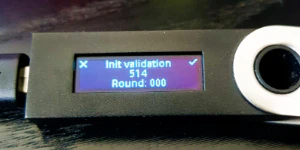
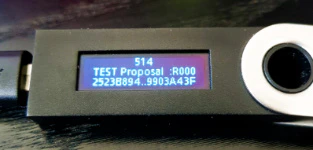
Once the ledger receives the first message, it will ask for confirmation that the values are adequate.